support@www.leaftechit.com
 720-772-3044
Effective communication between internal teams, external partners, vendors, and clients is essential to modern cooperation. SharePoint Online is the foundation for document sharing and storage in Microsoft 365. However, there are inherent security hazards when team members are permitted to communicate critical files across organizational borders. Organizations are more vulnerable to data loss, unauthorized access, and regulatory non-compliance when they fail to manage external access permits or have them inadequately structured.
Implementing blanket constraints that prevent external sharing for the entire tenant is a frequent strategy employed by risk-averse IT administrators. This approach eliminates SharePoint’s direct external exposure, but it frequently results in Shadow IT, an even greater security issue. When they can’t send important files via work systems to meet project deadlines, employees turn to personal email accounts, unauthorized cloud storage services, and web converters. To achieve true document security, a complex governance plan that sets boundaries without creating operational challenges is required.
Establishing an Effective External Sharing Governance Policy
A robust SharePoint external sharing governance strategy avoids one-size-fits-all regulations. Different business functions have quite different security requirements. While legal, finance, and human resources teams handle extremely private papers that necessitate stringent perimeter controls, marketing teams must share public media assets with external agencies with ease.
Instead of defining tenant-wide sharing parameters at the highest level of restriction, governance policies should use site-specific sharing boundaries that correspond with data classification levels. Administrators can set basic tenant-level restrictions and selectively prohibit specific site collections with Microsoft 365. For instance, public collaboration portals may permit sharing with verified external users or present visitors, even while financial auditing websites may completely forbid external sharing.
Administrative bloat is also avoided by establishing clear authorization tiers for external sharing. Giving each employee site-owner rights results in expansive permissions and unmonitored file links. Organizations maintain complete visibility into shared resources while establishing unambiguous accountability by assigning trained site owners or demanding administrative clearance for visitor access.
Optimizing Link Types and Expiration Best Practices
One of the most common reasons for inadvertent data exposure in SharePoint Online is misconfigured default sharing connections. When employees click the “Share” button, the default link type of the system significantly affects user behavior.
Link Configuration Strategy
- “Anyone” Links (Anonymous Access): These links allow anyone with the URL to view or edit files without authenticating. In enterprise environments, generally turn off anonymous access links at the tenant level or limit them to designated public-facing sites.
- “People in Your Organization” Links: These links are only accessible by internally authenticated users. They are ideal for internal communication and assure that forwarded URLs cannot be accessed by outside parties.
- “Specific People” Links (Direct Access): This represents the most secure sharing method for external collaboration. Access is restricted exclusively to individuals specified by name or email address, requiring external recipients to authenticate with a time-based verification code or guest account before opening the document.
By making “Specific People” or “People in Your Organization” the default link types, you may stop unintentional clicks from granting widespread public access. An automated safety net is also provided by enforcing obligatory link expiration settings. External links should never be active forever. By setting up an automated expiration window, such 30 or 60 days, you can prevent long-term lingering access throughout your tenant by ensuring that temporary partner access organically sunsets as projects end.
Automated Guest Access Review Process in Microsoft 365
Deep collaboration is made possible by inviting outside users as guests into Microsoft Teams channels or SharePoint sites, but dormant guest accounts eventually pose a serious security concern. When agency contacts leave projects, vendors complete contracts, and outside consultants switch firms, their guest identities frequently stay active within Microsoft Entra ID (previously Azure Active Directory).
An automated guest access assessment process in Microsoft Entra Identity Governance solves this issue. Through access assessments, site owners, project managers, or even the visitors themselves are sometimes asked to attest to the requirement of maintaining access.
During an automatic access review cycle, chosen reviewers receive a combined notification about active guest users, their last login dates, and the specific resources they can access. As long as a reviewer certifies ongoing cooperation, guest access is granted for a defined period of time. If the reviewer declines access or does not respond within the designated time, the system automatically revokes the guest user’s access rights and queues the identity for removal. This self-healing process keeps the identity directory clean without requiring IT support personnel to do manual user checks.
Leveraging Sensitivity Labels for Dynamic External Sharing Policies
Relying solely on site-level settings leaves gaps when sensitive files move or are stored outside designated secure folders. Microsoft Purview Sensitivity Labels allow organizations to classify and protect data at the document and container level based on content sensitivity rather than location alone.
When a user applies a sensitivity label—such as Internal, Confidential, or Restricted—the label can dynamically enforce specific external sharing restrictions. For example, a document labeled Highly Confidential can automatically block external sharing links, enforce encryption, prevent printing or copying, and restrict access exclusively to authenticated internal group members.
Organizations can identify when an employee tries to send sensitive content (such financial documents, intellectual property, or personally identifiable information) to an external email account by combining sensitivity labels with Microsoft Purview Data Loss Prevention (DLP) rules. The action can be instantly blocked, the user can see an instructive pop-up tip, or security monitoring teams can receive an alert.
Designing an Approval Workflow for External Sharing
In high-compliance industries or sensitive operational departments, self-serve external sharing may carry unacceptable risk. In these scenarios, deploying an automated approval workflow provides governance without slowing operations down with manual support tickets.
Using Power Automate and Microsoft Teams, organizations can build custom approval workflows for external sharing requests. When an employee needs to share a restricted library or invite an external guest to a confidential project site, they submit a brief request detailing the business justification, target recipient, and intended duration.
The workflow automatically routes the request to the manager or designated data owner via Microsoft Teams or email. Upon approval, Power Automate programmatically generates the required guest invitation or temporary sharing link and applies the appropriate expiration policy. This provides an immutable audit log of who requested access, who authorized it, and the business rationale behind the exception.
Avoiding Common External Sharing Failure Scenarios
Understanding where external sharing governance typically breaks down helps organizations build more resilient controls.
- The Over-Permissive Tenant Baseline: Leaving tenant-level sharing set to “Anyone” by default, relying entirely on individual staff to select secure options. This invariably exposes sensitive spreadsheets to public search engines.
- Dormant Partner Access: Inviting external contractors into Teams channels and SharePoint libraries, but failing to remove them after contract completion. Years later, former vendors retain access to internal documentation.
- Inheritance Drift: Granting site-level permissions to external guests, which unintentionally exposes child folders containing internal operational notes or HR records due to broken permission inheritance.
- Shadow IT Workarounds: Enforcing blanket blocks on external sharing without offering a corporate-sanctioned alternative, driving employees to use personal cloud accounts or file transfer services.
A Phased Rollout Plan for External Sharing Controls
Strict security configurations implemented overnight may irritate end users and obstruct ongoing business operations. A staggered rollout approach ensures seamless adoption, suitable user training, and minimal disruption to production.
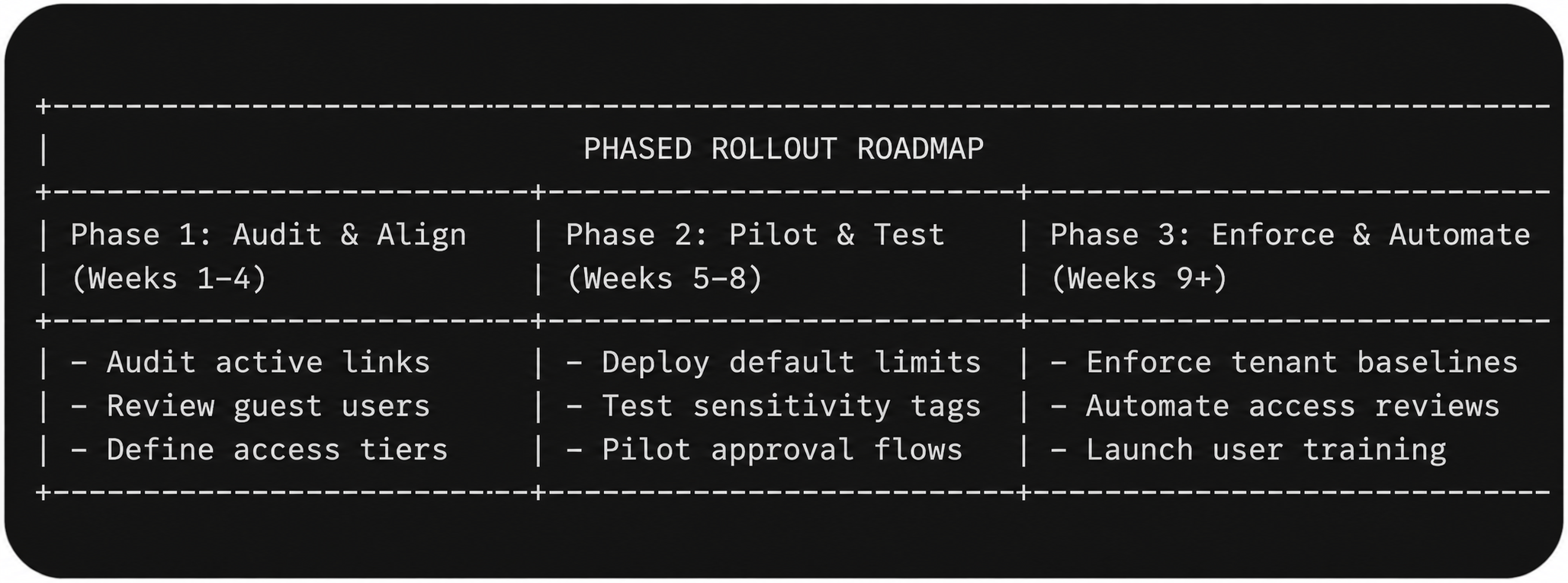
Phase 1: Audit and Assessment (Weeks 1–4)
Start by doing an audit of your existing environment. To find active “Anyone” links, external guest accounts, and high-volume sharing websites, run Microsoft Purview audit log reports. Map out important use cases for external cooperation across divisions and classify current SharePoint sites according to their level of sensitivity.
Phase 2: Pilot and Policy Design (Weeks 5–8)
In a pilot setting, establish baseline governance policies. Modify the tenant-default link type to “Specific People” and establish required link expiration windows, such as 30 days. Test automated approval workflows with a chosen user group and apply sensitivity labels throughout a single department, like Finance or Legal. Gather user feedback to modify policy messaging and pop-up tips.
Phase 3: Tenant-Wide Deployment and Automation (Weeks 9–12)
Update all SharePoint site collections’ sharing setups. Turn on Microsoft Entra Identity Governance’s 90-day period of automated guest access evaluations. Conduct quick training sessions and provide clear user manuals outlining safe file sharing techniques.
Phase 4: Continuous Governance and Auditing (Ongoing)
Track patterns in external link generation, access review completion rates, and DLP alarms. If cooperation patterns change, conduct quarterly executive reviews to improve sensitivity label regulations and modify expiration settings.
Microsoft 365 Governance Assessment
Data security and operational agility must be balanced while managing external sharing policies. Make an appointment for a thorough governance assessment right now if your company wants to reduce the risks associated with external sharing, remove outdated guest access, and create clear Microsoft 365 governance policies without impeding productivity. To evaluate your existing tenant posture and create a secure collaboration strategy that meets your operational requirements, get in touch with our experts.
Frequently Asked Questions
1. What happens to existing sharing links when external link expiration settings are enabled?
Newly established links are subject to the required link expiration policy that an administrator sets up in SharePoint Online. In order to prevent unplanned interruptions to active external cooperation, existing active links remain operational until their natural expiration date or unless a site owner manually revokes them.
2. What is the difference between a guest user and an external sharing link recipient?
Without being added to the organization’s directory, an external link recipient uses a direct link or time-based verification code to access a particular file or folder. In Microsoft Entra ID, a guest user is a fully supplied identity that can be added to Microsoft Teams, given security group rights, and given long-term access to all site collections.
3. Can site owners override tenant-wide external sharing settings?
No, tenant-level external sharing settings establish the maximum allowable boundary for all sites. Site-level controls can only be more restrictive than the tenant default, never less restrictive. For instance, if the tenant turns off “Anyone” links, an individual site owner cannot enable anonymous sharing on their site.
4. How do sensitivity labels interact with existing SharePoint permission settings?
Sensitivity labels serve as a general security layer. The restriction imposed by a sensitivity label on a document or container takes precedence over the site permissions if it imposes more stringent constraints than the underlying site permissions, such as preventing external access or implementing encryption.
5. How can IT teams prevent employees from bypassing external sharing controls using personal accounts?
Mitigating shadow IT takes both technical restrictions and sensible policies. By implementing Cloud App Security (Defender for Cloud Apps), IT can identify and limit uploads to unauthorized third-party cloud storage services, and establishing appropriate expiration windows and unambiguous approval processes guaranties that workers can easily finish legitimate tasks via official channels.